First, try the patterns you usually draw, slowly. If they don’t work, check whether your phone has a way to get back in that was set up before, such as Samsung’s previous-pattern unlock or a remote unlock. If nothing works, the only official way is a factory reset. A factory reset erases the phone. What you get back after that depends on your Google account and your backups.
This guide is only for your own phone. It doesn’t explain how to get around the lock on someone else’s phone.
First, don’t rush
Often a forgotten pattern is not completely gone. Try the shapes you have used before on this phone or on your older phones, one at a time. Don’t rush.
But remember that every wrong try costs time. After several wrong patterns in a row, the phone makes you wait.
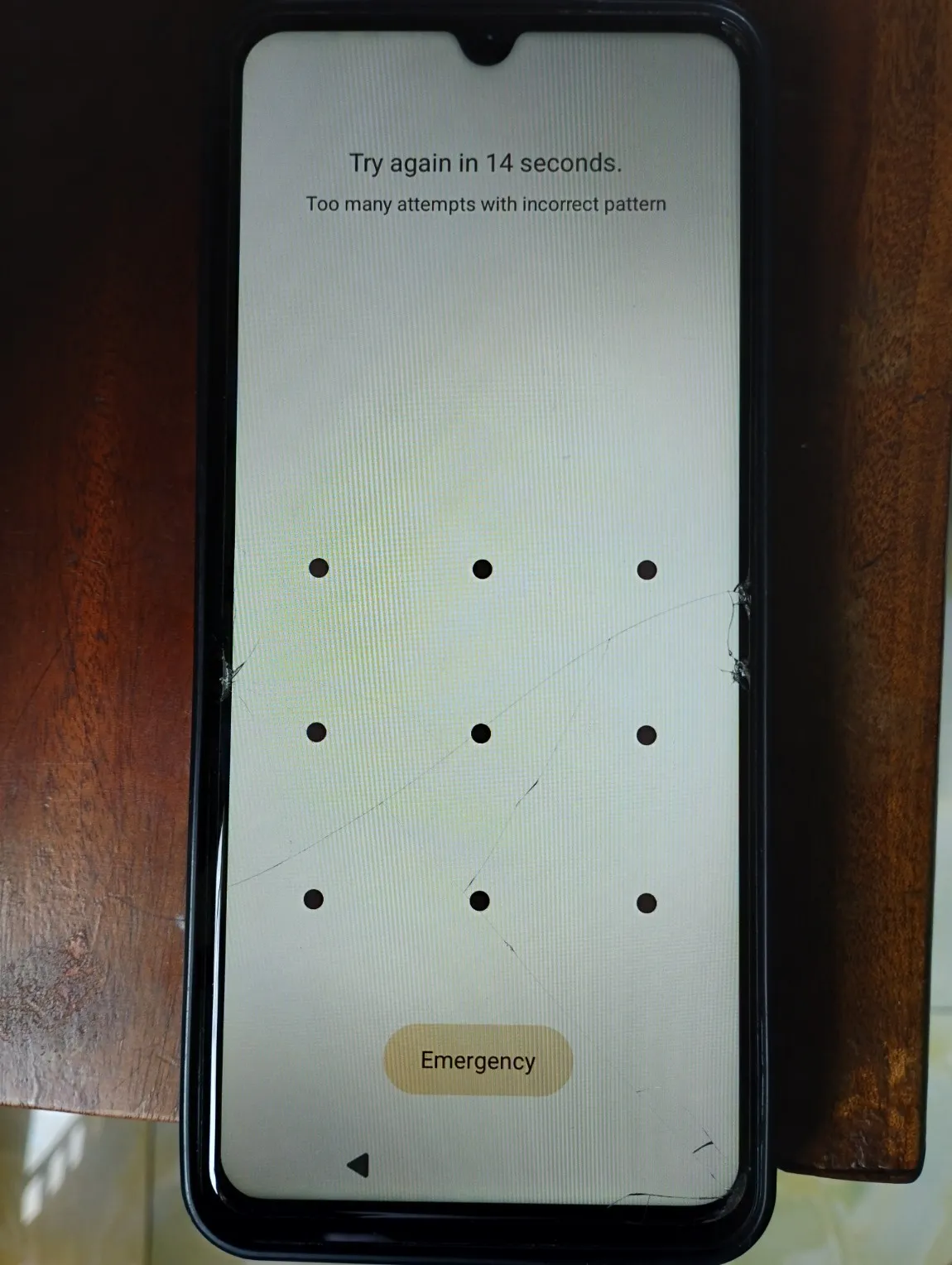
This is what my father’s Redmi A5 shows after a few wrong patterns. You have to wait 30 seconds before the next try.
While you wait, try to remember when you set the pattern and what shape you might have chosen. This works better than trying random shapes.
If your fingerprint or face still works
First, don’t restart the phone. What happens if you restart it? After a restart, the phone won’t accept your fingerprint or your face. It will open only with the pattern, and you don’t remember the pattern. According to Samsung’s help pages, the same thing happens on Galaxy phones that haven’t been used for more than 24 hours. So keep using the phone every day until the problem is solved (Samsung’s fingerprint guide (opens in a new tab)).
You also can’t simply set a new pattern. Android asks for the current pattern before it lets you change the screen lock (opens in a new tab). So while you can still get into the phone, do this:
- Back up your phone to your Google account (opens in a new tab), and save any photos you care about.
- If it’s a Samsung phone, use Find My Mobile to reset the unlock methods. Samsung’s guide (opens in a new tab) explains this case, where your fingerprint works but you don’t know the pattern.
- On other phones, ask your phone maker’s support what they can do, before the phone locks again.
Did you change the pattern in the last few days?
If you have a Samsung Galaxy phone with One UI 6.1 or later, a “Forgot pattern” option appears on the lock screen after five wrong tries. With it, you can unlock the phone using your previous pattern. This works because the phone keeps the old pattern for 72 hours after you change it. Samsung explains it here (opens in a new tab).
Did you set up a remote unlock before?
Samsung recommends setting up a remote unlock method in advance, for exactly this situation. If you did this on your Samsung phone, use it now. If you didn’t, Samsung’s advice is a factory reset.
Many people expect the tools below to help. But none of them can unlock the phone:
- Google’s Find Hub can find, lock or erase a lost Android phone, but it can’t unlock it (Android Help (opens in a new tab)).
- Extend Unlock (it used to be called Smart Lock) keeps a phone unlocked in trusted places or near trusted devices. But you have to unlock it once with your pattern (opens in a new tab) first, so it doesn’t help when the screen is already locked.
- Xiaomi’s Find device can find a phone or wipe it. It can’t unlock it either (Xiaomi’s FAQ (opens in a new tab)).
When nothing else works
The last option is a factory reset. It removes the pattern by erasing all your data from the phone (opens in a new tab). Photos, messages and apps that weren’t backed up will be lost. An SD card may not be erased.
You can do a factory reset in two ways:
- From another phone or a computer, using the “Erase” option in Find Hub. This only works if the locked phone is switched on, connected to Wi-Fi or mobile data, signed in to a Google account, and has Find Hub turned on.
- On the phone itself, using its buttons to open a reset menu. Every model uses a different button combination, so check your phone maker’s support pages.
Before you reset, check two things on another device:
- Make sure you know the Google account on the phone and its password. After the reset, the phone asks for this account before anyone can use it. Android does this to stop thieves (opens in a new tab), but it also applies to the real owner. To be sure, sign in to that account on a computer first. If you changed the password recently, Google says to wait 24 hours before resetting.
- If it’s a Xiaomi or Redmi phone with Find device turned on, you’ll also need your Xiaomi account and password to start using the phone again. The same Xiaomi FAQ explains this.
After the reset, sign in with the same Google account. Anything that was in your Google account backup can be restored. Your apps will be installed again, but app data that wasn’t backed up won’t come back.
If you’re not sure about any of this, take the phone to an authorised service centre for your phone’s brand. That is safer than going to a random repair shop.
What about unlock tools and “bypass” videos?
This guide doesn’t talk about them. Tools that promise to remove a lock without your account are often scams or contain malware. Thieves also use the same tricks on stolen phones. For your own phone, the steps above and your phone maker’s support are the safe way.
After you get back in
Set a pattern that you will really remember. The guide on how to remember your pattern lock explains a few easy ways, like connecting the pattern to a shape or a number.
Then make a backup of the pattern. Draw it on the pattern lock tool, download the numbered picture and keep it somewhere outside the phone. The guide on where a pattern picture is safe explains the good and bad places. It’s also a good idea to turn on automatic backup, so your photos are safe if this happens again.