Tie the pattern to a shape or a short number you already know, and practise it a few times on the day you set it. Also keep a picture of the pattern somewhere outside the phone. That last step is what finally made it possible to put a lock on my father’s phone.
My father’s phone had no lock
My father uses a Redmi A5. For a long time there was no screen lock on it at all. He didn’t want a pattern because he was afraid he would forget it one day and not be able to open his own phone.
The fingerprint sensor wasn’t a good option either. The REDMI A5 (opens in a new tab) has a fingerprint sensor on the side. But my father works with his hands, and the skin on his fingertips is often rough or cracked. Because of this, the sensor often can’t read his finger, so he stopped using it. Samsung’s help page also says that very dry fingertips and fingers with scars can stop a fingerprint sensor from working (Samsung: I can’t unlock my device (opens in a new tab)).
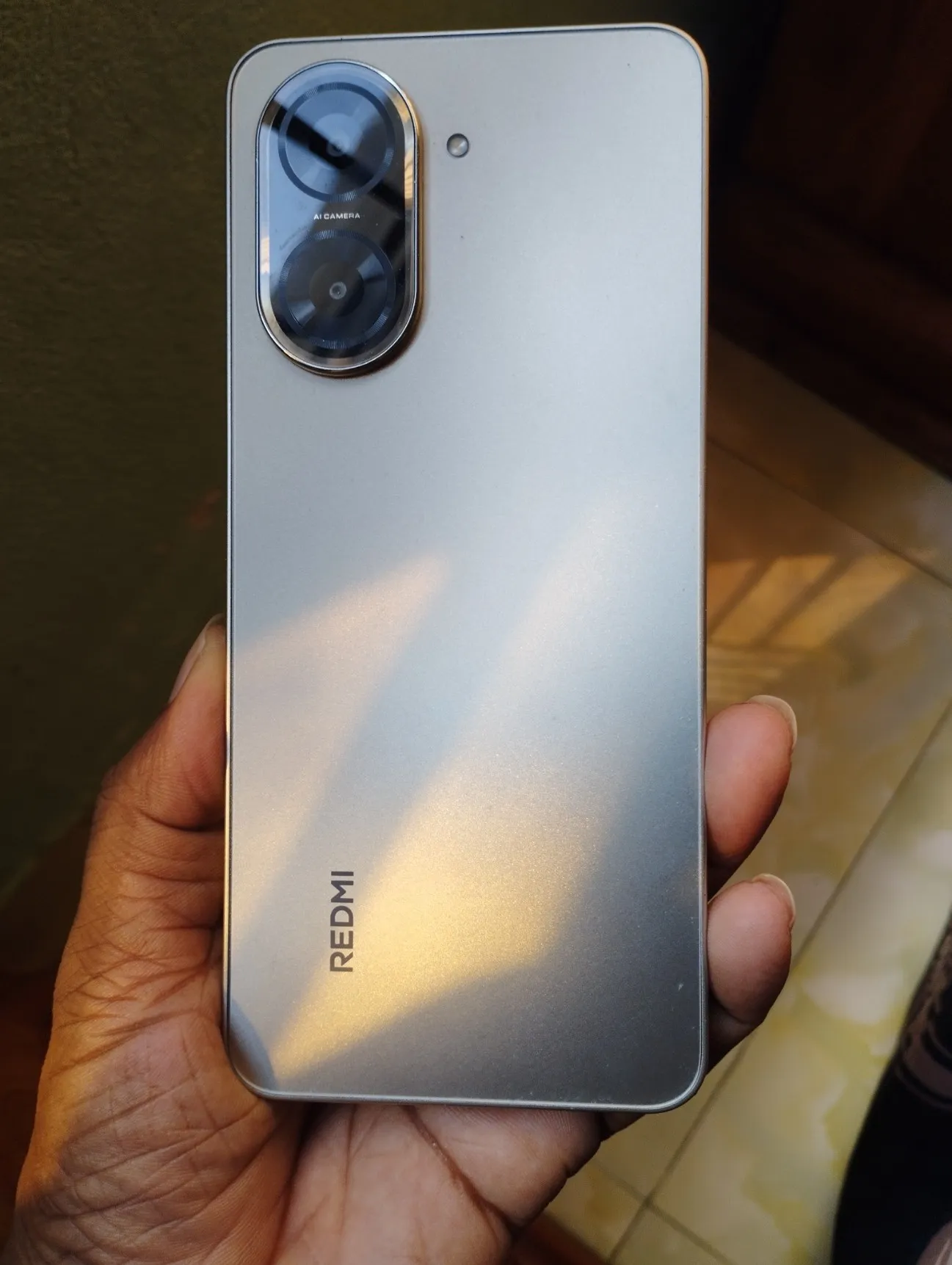
My father’s Redmi A5. For a long time, anyone could pick it up and open it.
We also tried writing codes on paper. That didn’t work well. After a few months the paper was lost or damaged, and many times nobody wrote the new code down at all.
So he needed a lock that he wouldn’t be afraid of. The ideas below helped.
Why do people forget their pattern?
Most people don’t remember a pattern as words or numbers. They remember how their finger moves. This works well when you unlock the phone many times every day. When you stop drawing the pattern for a while, you start to forget it.
This happens most to people who use fingerprint or face unlock. With these, the phone asks for the pattern only after a restart and sometimes for security. On Samsung phones, for example, the phone asks for the pattern after a restart, after a day without use, and 72 hours after the pattern was last used (Samsung explains why (opens in a new tab)). So you can go several days without drawing your pattern. Then one night an update restarts the phone, and in the morning you suddenly need the pattern.
Use a shape you already know, and change it a little
Letters and numbers are easy to remember, for example L, Z, N or the number 7. Even the logo of this site is the letter M drawn on the dots.
But a stranger who tries to guess your pattern will also try these letters first. So change the shape a little. For example, draw a Z and then add one more dot going up at the end. You only need to remember “Z, then up”. Someone who tries a normal Z will get it wrong.
Or remember it as a number
Some people remember numbers better than pictures. If that’s you, give each dot a number like the keys on a phone keypad: 1, 2, 3 on the top row, 4, 5, 6 in the middle and 7, 8, 9 at the bottom.
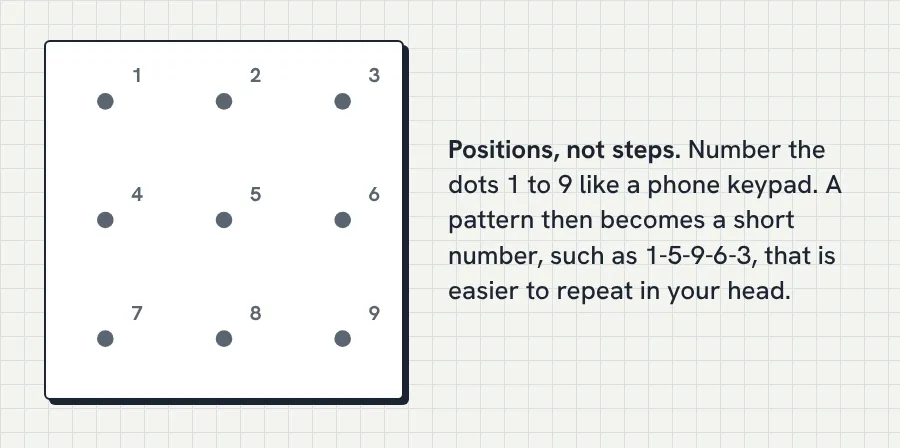
Now your pattern becomes a number. For example, top-left, centre, bottom-right, middle-right, top-right becomes 1-5-9-6-3. Keep this number only in your head. If you write it on the back of the phone, it’s the same as writing the pattern there.
Say it out loud
Some people remember words better. For them, a short sentence works well, for example: “across the top, down to the bottom-left corner, then across the bottom”. Say it once or twice while you draw the pattern. This also helps when you teach the pattern to someone in your family.
Practise on the first day
Most forgotten patterns are new patterns. So right after you set a new pattern:
- Lock and unlock the phone ten times.
- The next morning, do it a few more times.
- Restart the phone once and unlock it. This way you know the pattern also works after a restart.
This takes about two minutes.
Keep a picture of the pattern, but not only in the phone
The tips above help, but one day they may not be enough. A clear picture with every step numbered helps you copy the pattern dot by dot. You don’t have to guess which way the line went.
You can make this picture with the pattern lock tool on this site. Draw the pattern, type a name like “Papa’s phone” and press Download Image. The picture shows the phone’s name, a number on every step and a ring around the dot where you start. Everything is made in your browser, and nothing is uploaded.
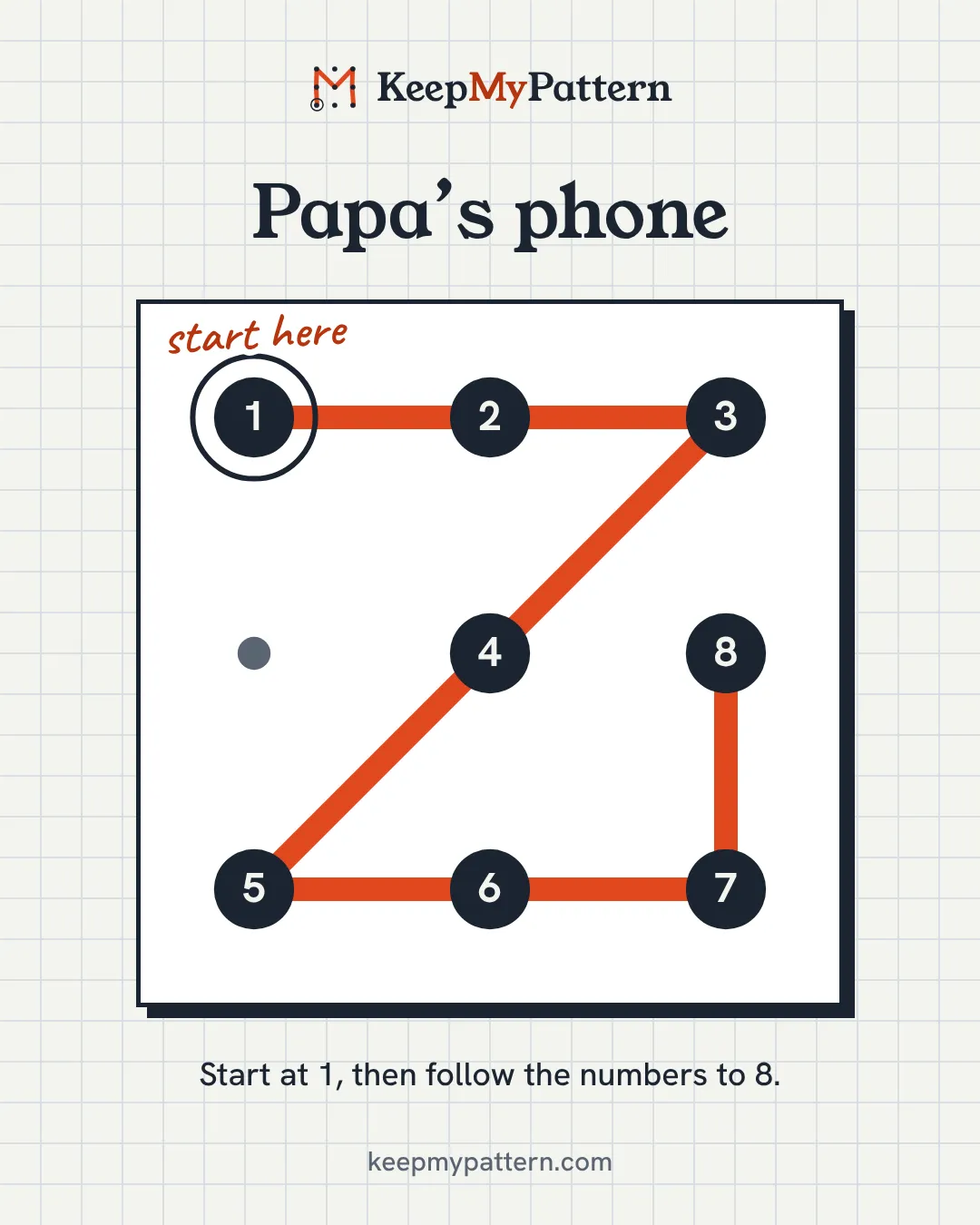
A picture has one more advantage over a paper note, and for us this was important: you can keep more than one copy. If you lose one, you still have another.
The most important thing is where you keep the picture. If the only copy is in the gallery of the same phone, it won’t help you. When you forget the pattern, you can’t open the phone, so you can’t see the picture either. Print it, keep it on another device, or give it to someone you trust. I keep the picture of my father’s pattern on my own phone. The guide on whether a pattern picture is safe explains which places are good and which are not.
Setting a pattern for a parent
I wrote the whole story of how I put a lock on my father’s phone, step by step, in how to set up a lock on an older parent’s phone. These are the main points:
- Let your parent draw the pattern themselves a few times while you watch. A pattern they have practised is easier to remember than one you chose for them.
- Choose a shape that means something to them, and change it a little.
- Five or six dots is a good length. Four dots are easy to guess (there are only 1,624 four-dot patterns, as the count of how many pattern locks are possible shows), and nine dots are hard to draw.
- If their fingers are worn or cracked, like my father’s, don’t depend on the fingerprint sensor. They need to be able to draw the pattern easily.
- Make the picture together. Keep a printed copy with their important papers, and another copy on your own phone.
- Show them where the copy is.
Things to avoid
Don’t write the pattern on the phone, on the case or on a sticker. Don’t use a picture of the pattern as the wallpaper. Don’t use the same pattern on every phone in the family, because then one lost picture can open all of them. And don’t keep the only copy inside the phone itself.
Already forgot your pattern?
This site can’t unlock a phone. It only helps you keep a pattern that you still remember. The full guide on what to do if you forgot your pattern lock explains every option step by step. Here is the short version.
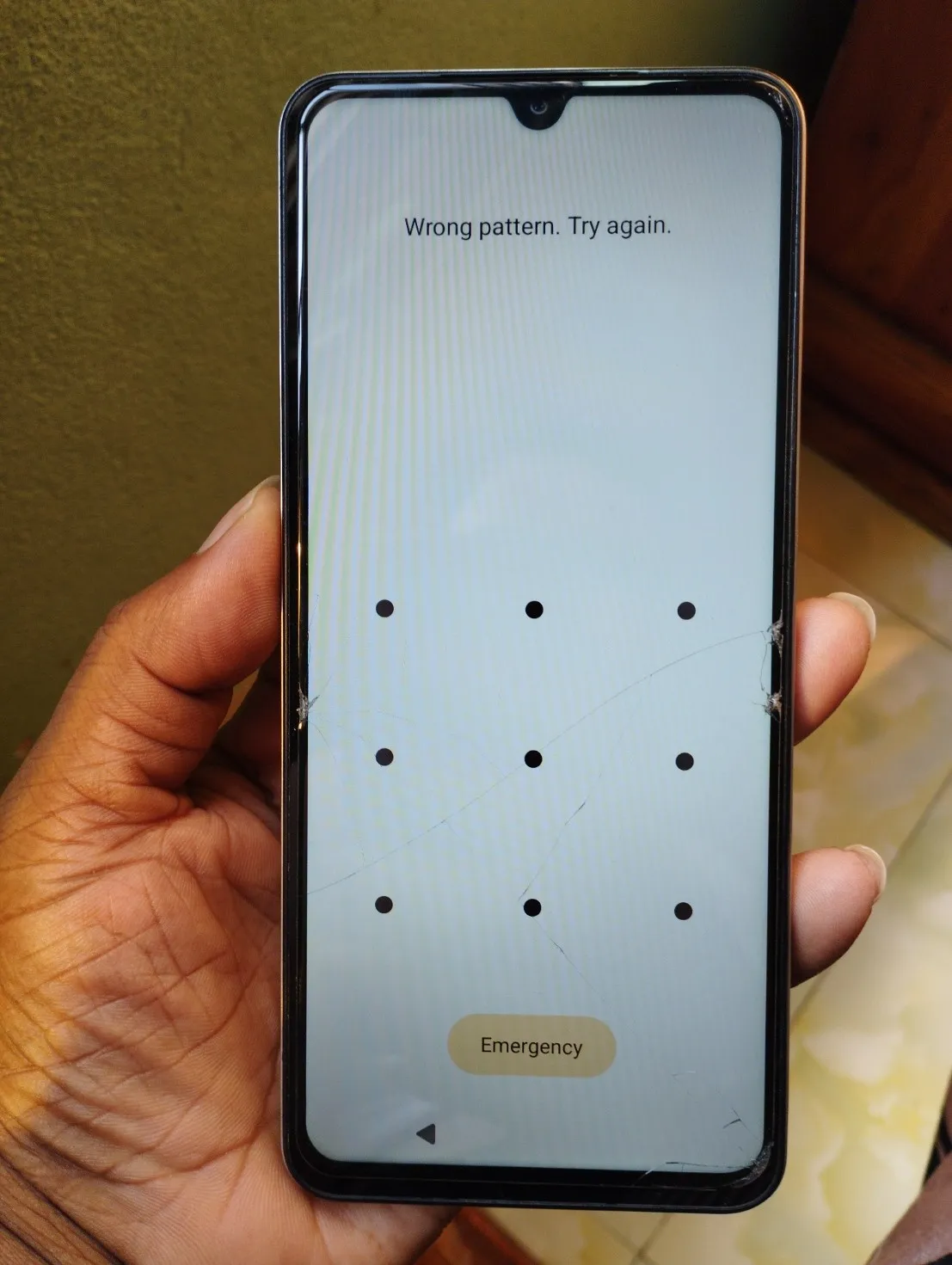
This is what the Redmi A5 shows after a wrong pattern.
First, try your usual shapes slowly. After several wrong tries, the phone makes you wait before you can try again. On my father’s Redmi A5, the wait is 30 seconds.
Some phones have a way to get back in. On Samsung Galaxy phones with One UI 6.1 or later, a “Forgot pattern” option appears after five wrong tries. With it you can unlock the phone with your previous pattern, for up to 72 hours after you changed it (Samsung’s guide (opens in a new tab)). Samsung also suggests setting up a remote unlock method before you ever need it (I can’t unlock my Samsung Galaxy device (opens in a new tab)).
Google’s Find Hub can find, lock or erase a lost Android phone, but it can’t unlock it (Android Help (opens in a new tab)). The last option is a factory reset. It removes the lock, but it also erases all your data from the phone (opens in a new tab), and after the reset you’ll need the Google account that was on the phone. Your phone maker’s support can tell you what works for your model.