Yes, it’s safe, as long as you keep the picture in a place that only you, or someone you trust, can open. The picture works just like the pattern itself. Anyone who sees it and has your phone in their hand can unlock your phone. So where you keep the picture decides whether it’s safe or not.
I had to think about this for my father. For a long time his Redmi A5 had no lock at all, because he was afraid he would forget a pattern. Then, during a family party at our home, a guest went through his phone without asking. I wrote about that day in how to set up a lock on an older parent’s phone. A phone with no lock can be opened by anyone. A pattern with a backup picture kept in a private place is much safer than that.
Who could actually use the picture?
A pattern is only useful to someone who is holding your phone. A hacker in another country can’t do anything with it. The people who matter are the ones who can get close to your phone: family, guests, people you share a room or an office with, someone who finds your phone on a bus, or the person at the repair shop.
So the picture is only a risk if one of these people sees it.
Patterns also have their own weak points, even without a picture. In 2010, researchers at the University of Pennsylvania showed that an Android pattern can often be worked out from the greasy finger marks left on the screen. Their paper is called Smudge Attacks on Smartphone Touch Screens (opens in a new tab). Someone standing behind you can also simply watch you draw it. If you keep the picture private, it doesn’t make either of these problems worse.
Good places to keep the picture
A printed copy at home, kept with your important papers, is a good choice. Don’t keep it in your wallet or in the bag you carry your phone in. If someone steals that bag, they get the phone and the pattern together.
A locked folder on a different device also works well. Google Photos has a Locked Folder (opens in a new tab) that opens only with the device’s screen lock, and Samsung phones have a Secure Folder (opens in a new tab). These folders open with the screen lock of the device they are on. So keep the picture in a locked folder on another phone or tablet, not on the phone that the pattern opens.
A private chat that only you are in can also work, if you can open that app on a second device, like a laptop.
For a parent’s phone, the person who set up the lock can keep a copy. I keep the picture of my father’s pattern on my own phone. If you already use a password manager, many of them can also store a picture or a secure note.
Places where you shouldn’t keep it
The most common mistake is keeping the only copy inside the phone that the pattern opens. If you forget the pattern, the picture is locked inside the phone with everything else. (If this has already happened, see what to do if you forgot your pattern lock.)
Also avoid shared albums, galleries that sync to a family account, and group chats. Even in a family group, every member gets a copy on their phone. Don’t post it on social media, not even in a private story. And please don’t use it as your wallpaper.
What to do right after you download the picture
On Android, the picture from the pattern lock tool is saved in your Downloads folder, and most gallery apps also show it. After downloading:
- Open the picture and draw the pattern on your phone, following the numbers. Check that the phone really unlocks.
- Move the picture to one of the good places above.
- Delete the copy from Downloads and from the gallery, then empty the gallery’s bin.
- If your photos are backed up to the cloud automatically, the picture may already be there. That copy is only as safe as your account, so use a strong password and turn on 2-Step Verification (opens in a new tab).
Is this website safe to use?
Yes. Everything happens inside your browser. The dots you choose, the name you type and the picture you download are never sent to me or to anyone else. There’s no account, no cookies and nothing to sign up for. When you close the tab, everything is gone. You can read the details in the privacy policy.
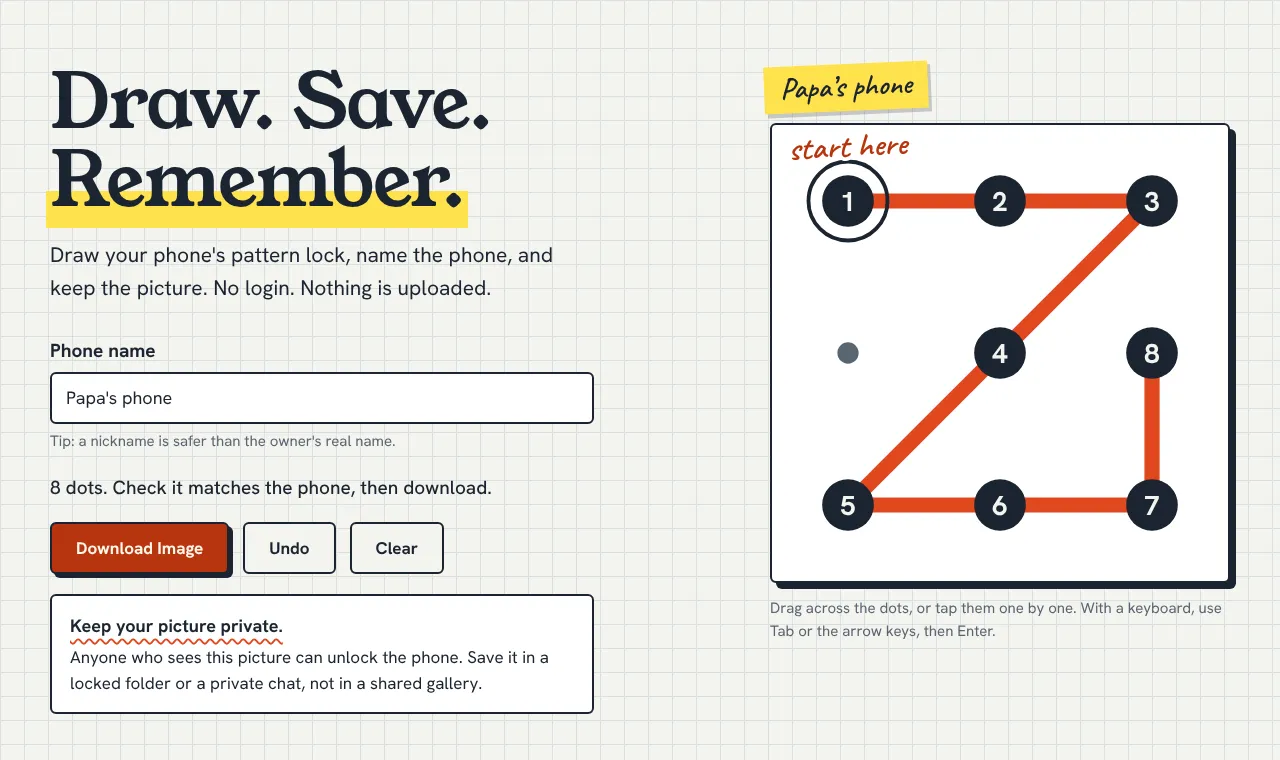
You can check this yourself. Open the page, turn on airplane mode, then draw the pattern and download the picture. It still works, because none of this needs the internet.
Two more small habits help. First, use a nickname like “Papa’s phone” instead of a full name. The picture also has no date or other personal details on it. Second, when you change the pattern, make a new picture and delete the old one. Then nobody follows an old copy by mistake.
What if someone saw the picture?
Change your pattern. On many Android phones you can do this in Settings, then Security, then Screen lock. Google’s own steps are in Set screen lock on an Android device (opens in a new tab).
The menu names are different on different brands.
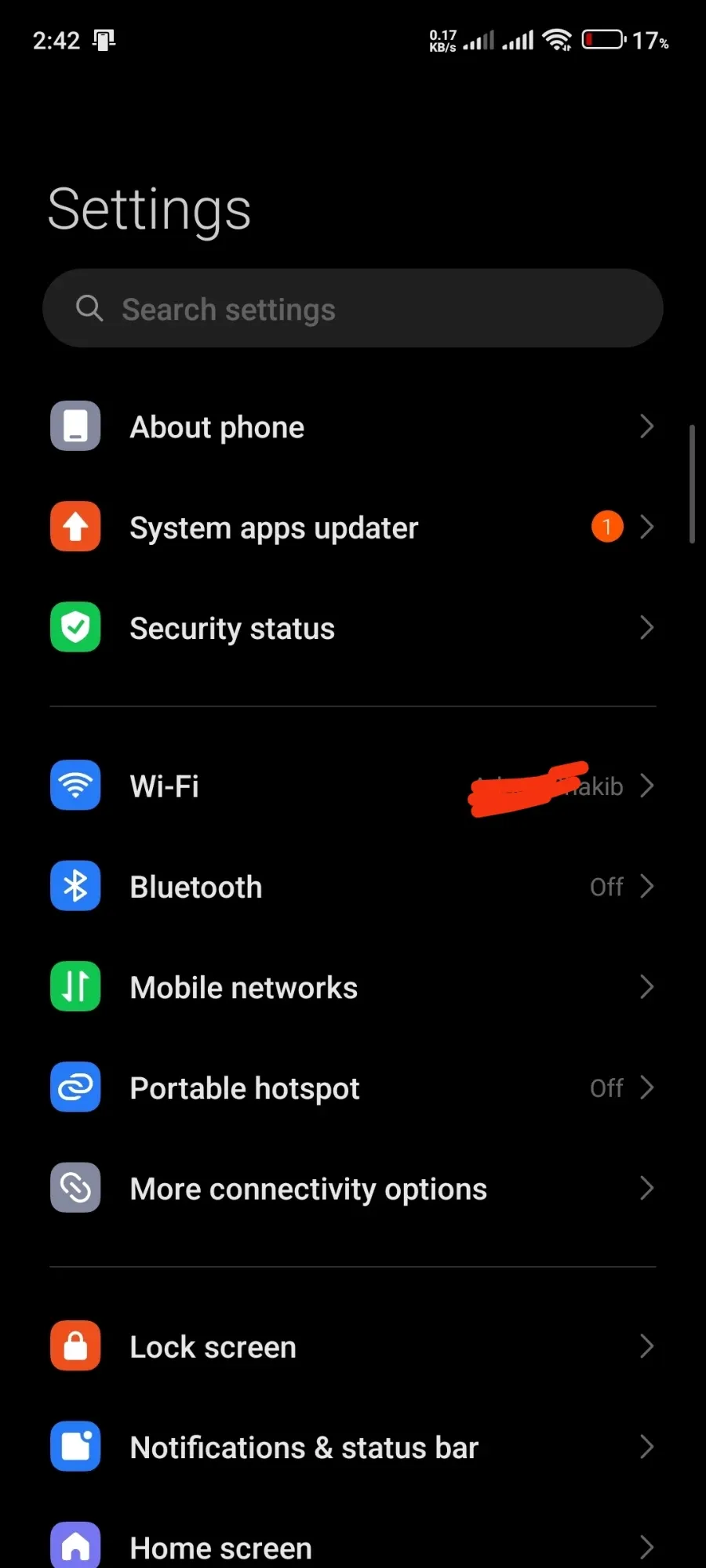
On this Xiaomi phone there is no plain “Security” option near the top. Instead you see “Security status” and “Lock screen”.
If you can’t find it, type “screen lock” in the search box at the top of Settings. After you change the pattern, make a new picture and delete the old one.
One more reason to save the picture
When you have a safe backup, you can choose a longer pattern without worrying about forgetting it. Longer patterns are much harder for others to guess. If you want to know how much harder, read how many pattern locks are possible for each length. And if your main problem is forgetting your pattern, start with how to remember your pattern lock.