Choose the lock together with your parent, pick something their hands can manage, let them practise it a few times, and keep a backup of the pattern where it can’t get lost. That’s how I finally put a lock on my father’s phone. Below I explain how it happened and what helped.
Why my father’s phone had no lock
My father uses a Redmi A5. For a long time it had no screen lock at all. He didn’t want one, because he was afraid he would forget the pattern and not be able to use his own phone.
He couldn’t really use the fingerprint sensor either. My father works with his hands, and the skin on his fingertips is often rough or cracked. Because of that, the sensor often doesn’t read his finger.
Nobody else in our family likes doing this job. They think setting a lock is risky. They worry they might make a mistake, or forget the pattern later. So whenever a phone needs a lock, they ask me to do it.
The day it changed
One day we had a family party at our home. There was a lot going on. My father left his phone in the dining room and went to work in the cattle shed. While he was there, one of the guests picked up his phone and started going through it. Nobody had given him permission to do that.
That same day I set a pattern lock on my father’s phone.
A phone without a lock is open to anyone in the house, even when everyone there is family or a guest. Google’s own help page says it clearly: with no screen lock, the phone “gives no protection” (Set screen lock on an Android device (opens in a new tab)).
Choose a lock that suits their hands
For an older parent, the best lock is the one they can use every day without stress.
- A fingerprint is easy when it works. But worn or cracked fingertips can stop it from working. Samsung’s help page lists very dry fingertips and fingers with scars as common reasons (Samsung: I can’t unlock my device (opens in a new tab)). Also, even with a fingerprint, the phone still asks for the PIN or pattern after a restart, so your parent needs to know that too (Samsung’s fingerprint guide (opens in a new tab)).
- A PIN means remembering numbers.
- A pattern has no numbers to remember, only a shape. For many older people this is the easiest choice.
How to set the pattern
The menu names are different on every phone. On many Android phones it goes like this (Google’s steps (opens in a new tab)):
- Open the Settings app.
- Tap Security. If you can’t find it, type “screen lock” in the search box at the top of Settings.
- Tap Screen lock, then choose Pattern.
- Follow the instructions on the screen.
A few things make the pattern easier for your parent:
- Let your parent draw the pattern, not you. A shape they drew themselves is easier for them to remember.
- Use 5 or 6 dots. Four dots are easy to guess, and nine are hard to draw.
- Choose a shape that means something to them, like the first letter of a name, and change it a little. The guide on how to remember your pattern lock has more ideas.
Practise together
Right after setting the pattern, lock and unlock the phone together several times. Then show your parent what happens after a wrong pattern, so it doesn’t scare them later.
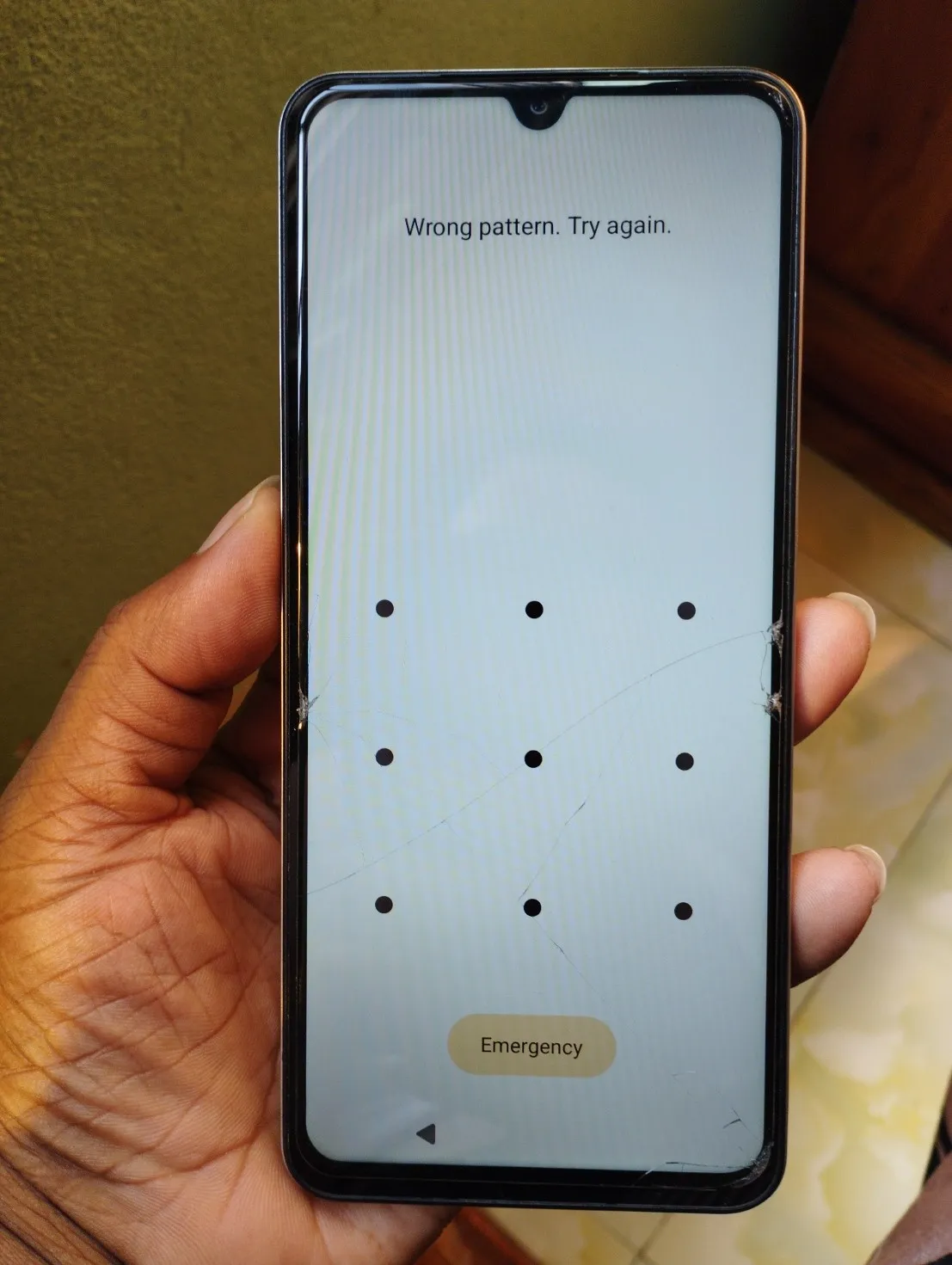
The Redmi A5 after a wrong pattern. After several wrong tries in a row, it makes you wait 30 seconds.
Tell them that this is normal. They only need to wait, then try again slowly.
Be careful with “stay unlocked” settings
Android has a feature called Extend Unlock (it used to be called Smart Lock). It can keep a phone unlocked in some situations, for example when you’re near home (Android Help (opens in a new tab)). For a parent whose home is often full of family and guests, this brings back the same problem we had at the party. If you turn this feature on, don’t add home as a trusted place.
Keep a backup of the pattern
I keep the picture of my father’s pattern on my own phone. If he ever forgets it, I can show him the steps.
You can make the same kind of picture with the pattern lock tool on this site. Draw the pattern, type a name like “Papa’s phone” and press Download Image. The picture shows the phone’s name and a number on every step, with a ring around the starting dot. It’s made in your browser, and nothing is uploaded.
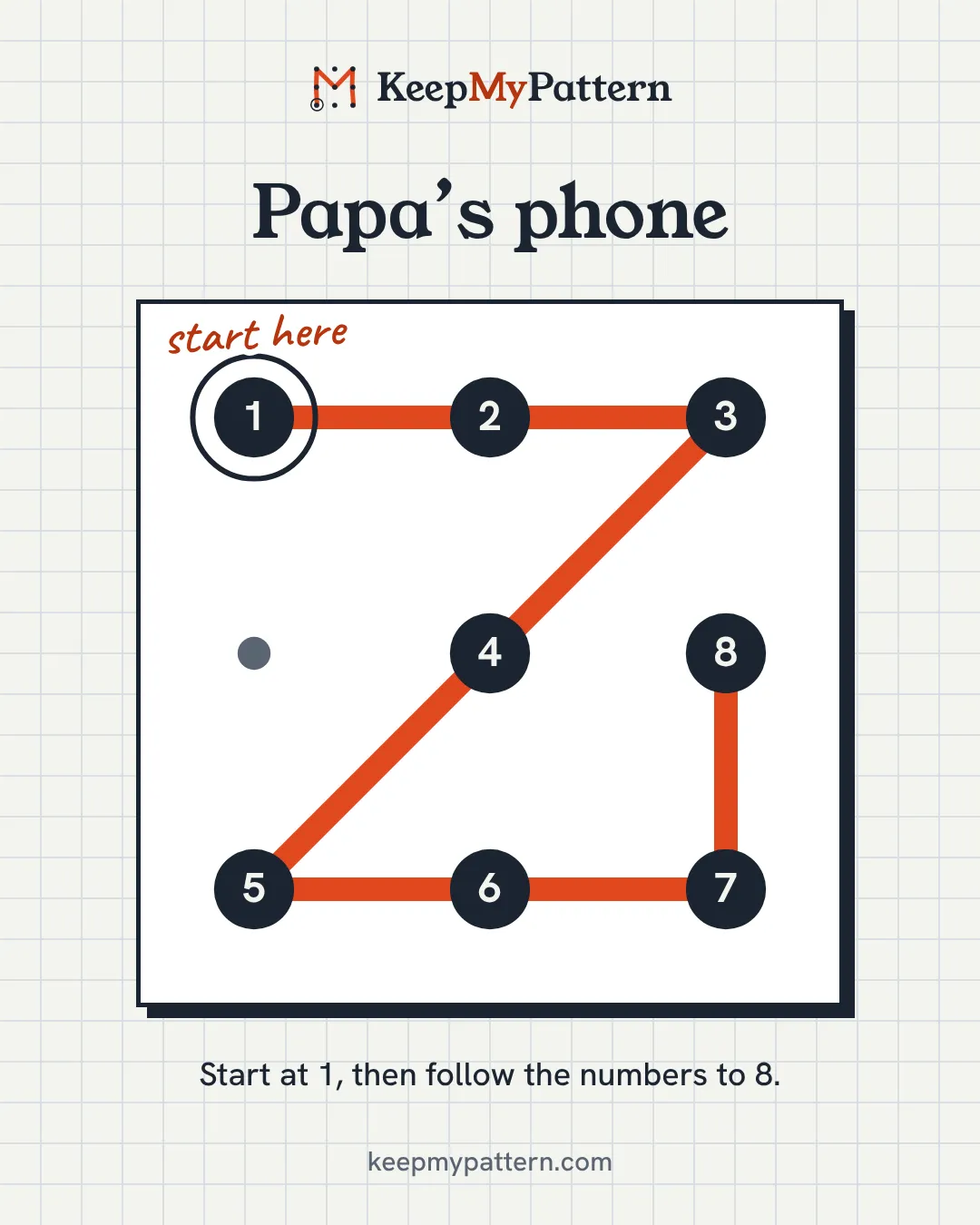
If several people in your family ask you to set their locks, the phone name helps a lot. You can keep “Papa’s phone”, “Ma’s phone” and so on as separate pictures, and you always know which picture belongs to which phone. Don’t use the same pattern on every phone, though. If one picture gets lost, it would open all of them.
Keep these pictures private, because anyone who sees one can unlock that phone. The guide on where a pattern picture is safe explains the good and bad places.
Know their Google account too
If the pattern is ever lost, the last option is a factory reset. After a reset, the phone asks for the Google account that was on it (Android Help (opens in a new tab)). So make sure you or your parent know that account and its password. The guide on what to do if you forgot your pattern lock explains the full process.